FAQ — How to use Nails Creator
No answer matches your search. Try another word, or browse the sections below.
Where are the tools?
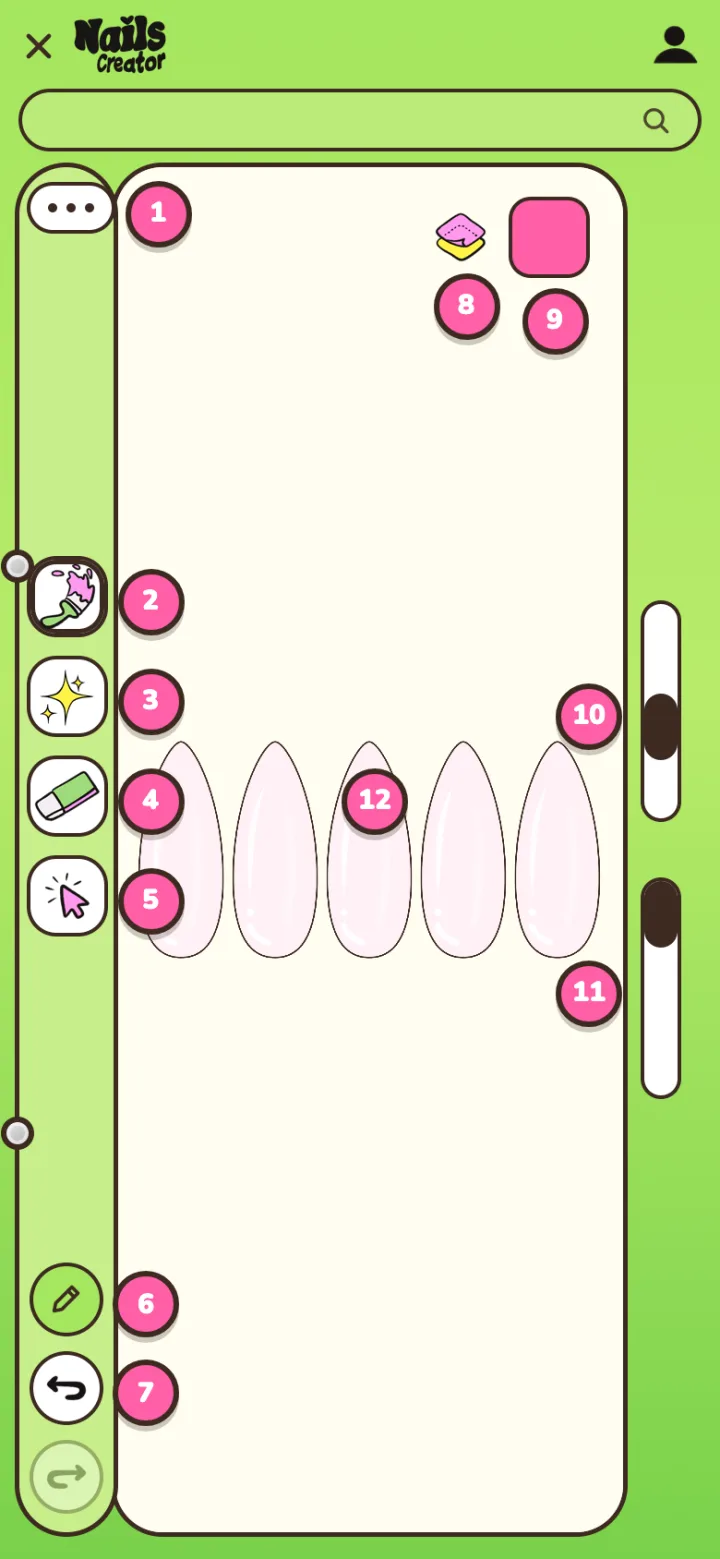
The editor at a glance: each number matches a button. Same places on iPad and iPhone.
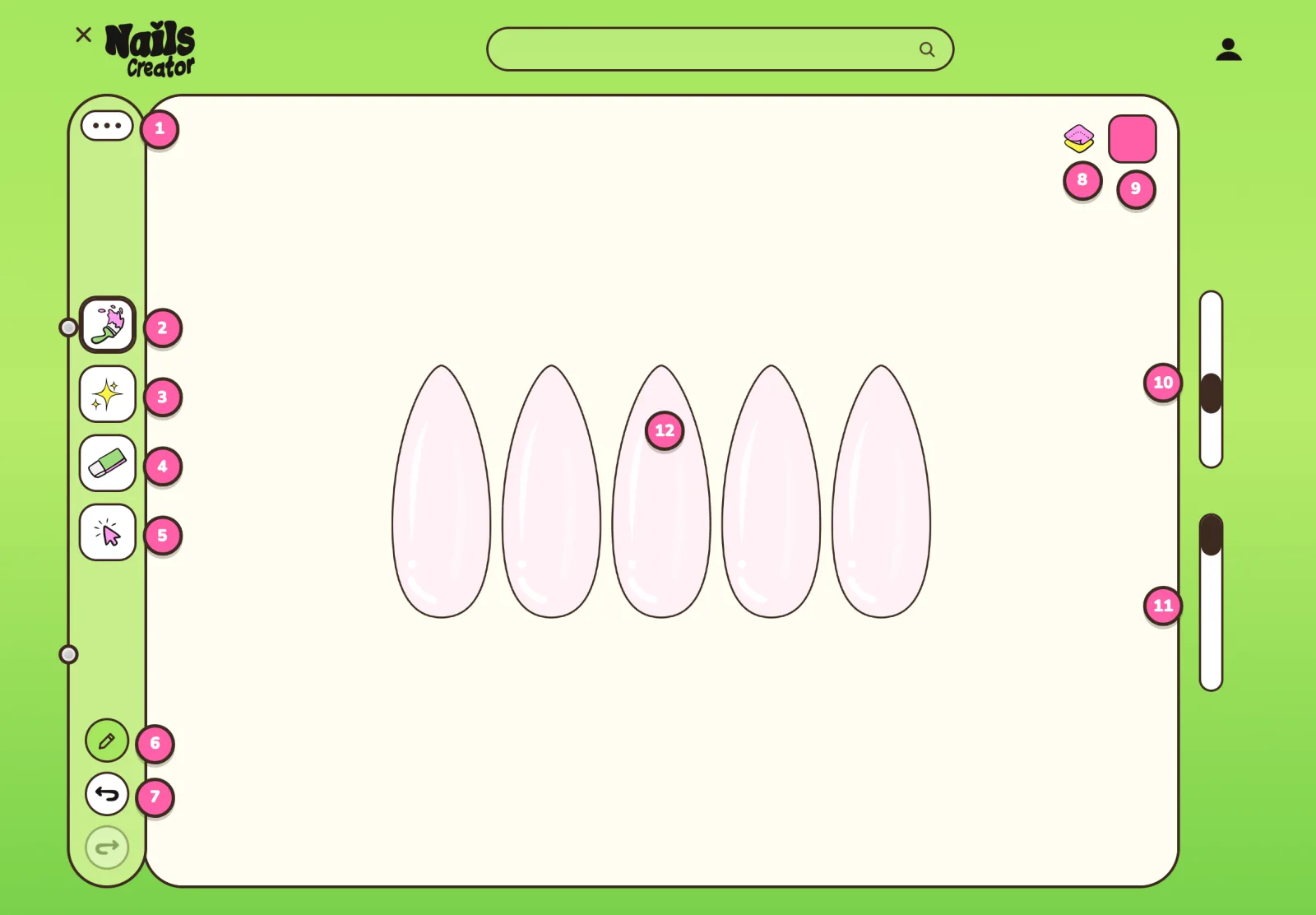
- Tools menu: nail templates, text, layers, copy and paste, image import, save, settings
- Brushes: brush, pen, dots, airbrush, line, paint bucket, effect brushes, 3D Gel…
- Decorations: French, flowers, rhinestones, stars, metal, 3D, Aurora, patterns, animal prints
- Eraser (double-tap a decoration to remove it)
- Select: move, resize or rotate a nail, a decoration or an image
- Apple Pencil only: your finger no longer draws, so your palm can rest
- Undo and redo
- Layers (with the board background at the bottom)
- Colours: palettes, ombré, colour wheel and sliders
- Tool size (above it, with 3D brushes: the “over the edge” button)
- Opacity
- The board: draw on the nails, pinch to zoom and rotate
About the app
What is Nails Creator?
Nails Creator is a mobile app to design nail art on iPhone and iPad. Paint nails, add French tips, charms, metallics, flowers and more, then save looks in your gallery or share them on the Wall club.
Who is Nails Creator for?
Nail artists who want to visualize sets before appointments, and anyone who loves nail art and wants to try styles, keep inspiration, and create freely.
Where can I download Nails Creator?
Nails Creator is available for free on the App Store for iPhone and iPad (apps.apple.com/app/id6833039857). The Android version is coming soon to Google Play.
Paint & create
How do I paint a nail?
Pick a brush (brush, pen, airbrush, dots, fill…), choose a color, then paint on a nail. Strokes stay clipped to the nail shape. Adjust size and opacity, and use StreamLine to steady your lines.
Should I apply color before placing a decoration?
Yes — that’s the best workflow: paint the base color (or French) first, then place decorations on top so charms and accents sit on a finished nail. You can also paint color on a new layer, then drag that layer under the decoration layer so the color sits underneath without covering your decor.
What if I placed a decor and still need to change the base color?
Create a new layer, paint the color there, then hold and slide the layers list to move that color layer under the decor layer. The decoration stays on top; the new color shows underneath.
Layers
How do layers work in Nails Creator?
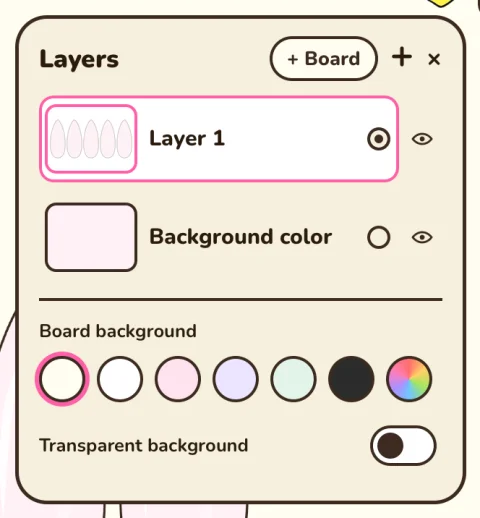
Each layer is a stack: what is higher in the list draws on top. New layers are added above. Hold and slide a layer to reorder. You can hide, lock, rename, duplicate, clear, or merge a layer down. At least one paint layer must remain.
What is the Board layer?
The Board layer lets you draw and write around the nails — for notes, moodboards, or presentation. Nail paint stays clipped to nails; Board content can sit outside them.
What are alpha lock and clipping mask?
Alpha lock paints only where pixels already exist on that layer (great for shading a filled nail). A clipping mask shows only where the first non-clipped layer below has paint — like Procreate. Use them to shade or detail without going outside the base.
Colors, gradients & drop
How do I color a decoration or element already placed?
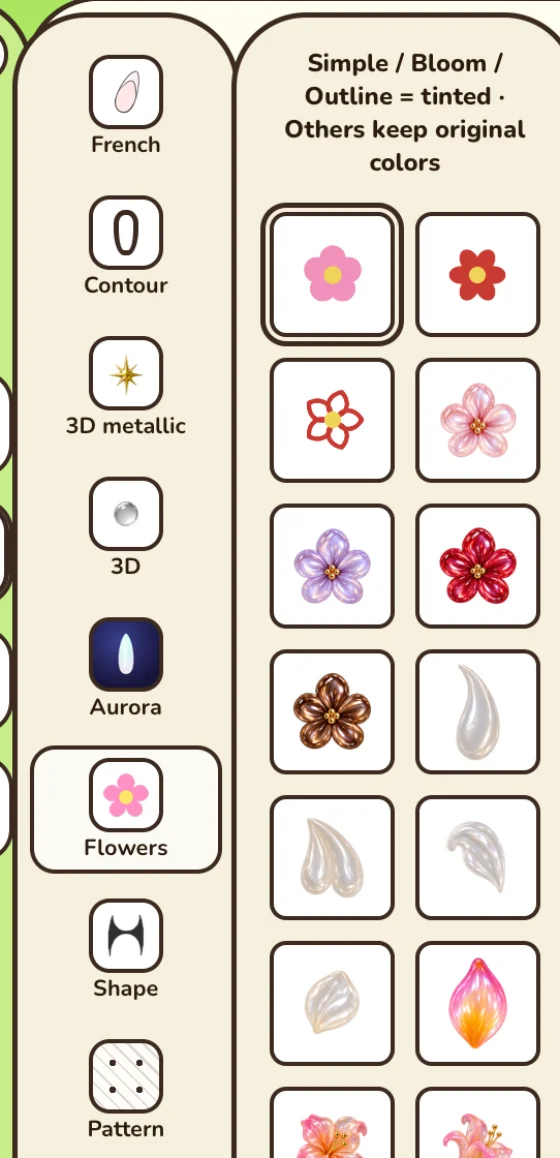
Select the decoration (tap it), then change the color in the color picker. Many items recolor while keeping their relief. For 3D metallic charms you can also reset to the original gold tint. Simple / Bloom / Outline flowers can be tinted when you place them if you pick a color first.
How do I put a gradient on a flower?
Only some pearl flowers support a two-color gradient: Glow, Blush, Lily, Sunset, Peach, and Coral. Place the flower, select it (without deforming it), open the color picker, then use “Decoration colors”: tap color 1 or color 2 and pick each shade. You can swap the two colors. The Ombré palette does not apply to flowers — it only paints nail gradients.
How do I apply an ombré (gradient) on a nail?
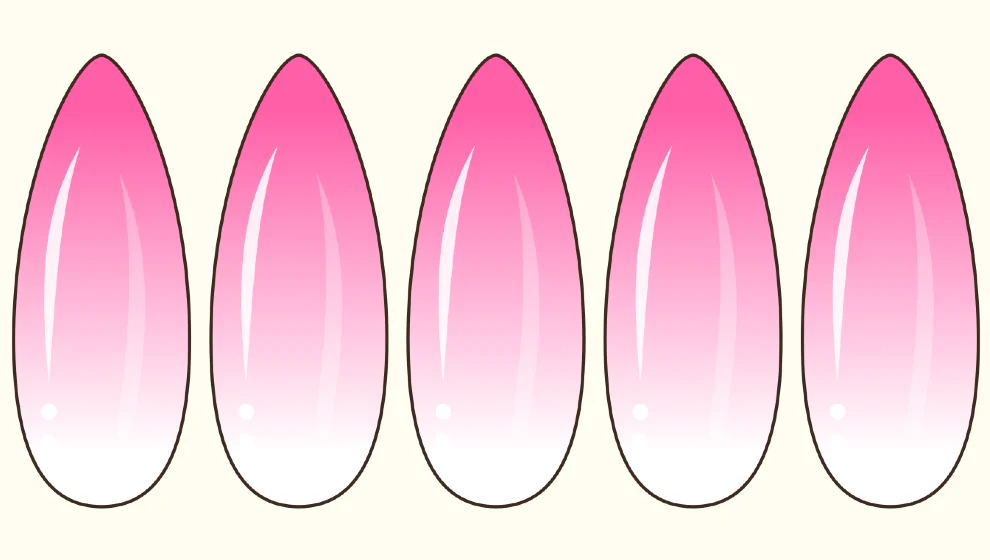
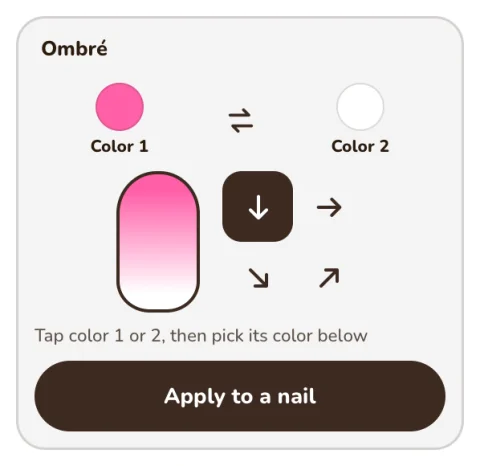
Open the color picker → Palette → Ombré. Set color 1 and color 2, choose the direction (top–bottom, left–right, or diagonal), tap “Apply to a nail”, then tap the nail. The ombré stays armed so you can tap other nails too.
Can I apply the Ombré palette on a flower or charm?
No. Ombré only fills a nail with a painted gradient. For a gradient look on a flower, use a two-color flower (Glow, Blush, Lily, Sunset, Peach, Coral) and the Decoration colors dots. Another workflow: paint an ombré on the nail first, then place the flower on top.
How does the paint bucket (Pot) work?
Choose the Bucket tool, pick a color and opacity, then tap inside a nail on the active layer. It flood-fills connected pixels inside the nail mask. It does not recolor a charm — use selection or the color swatch drop for that. On a background layer it can fill the whole background.
What is the color “drop” (dragging the swatch)?
Hold the color swatch at the top right of the editor and drag it onto your drawing, then release. It stays inside your lines: inside a circle or a grid cell, only that area fills, across all visible layers. On a stroke it recolors the stroke; on a decoration it recolors that item; on an empty nail it fills the nail; on multi-zone animal prints it can target a zone. (There is also a pearl flower named Drop — that is a decoration, not the drag gesture.)
Can I edit my palettes and keep my colours?
Yes. Your last colour is kept when you reopen the app, and a Recent row shows the colours you used last. In the palettes, tap Edit to rename a palette, tap a colour to remove it, or delete the whole palette. “+” adds the current colour. “Restore the original palettes” brings back the starting palettes.
French tips & decorations
How do I add a French tip?
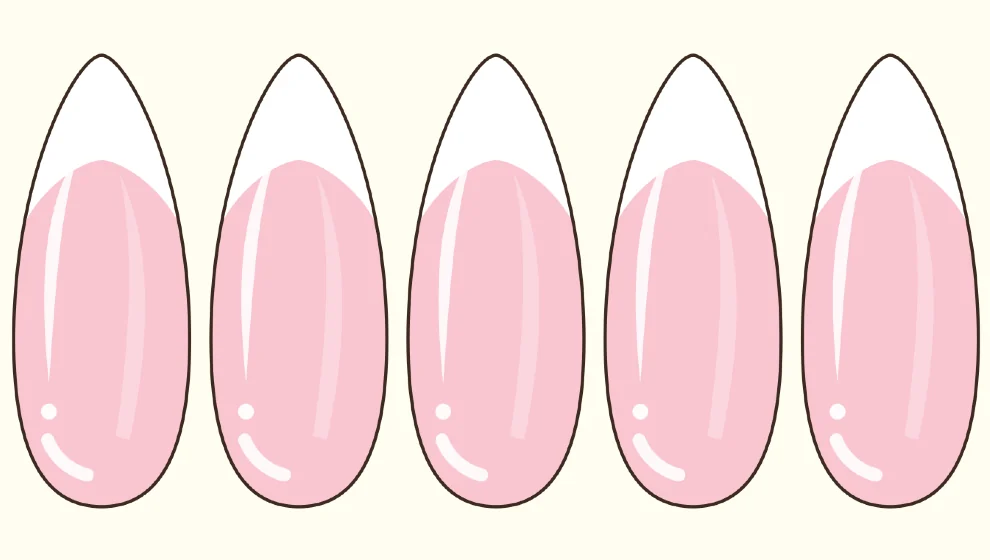
Open Decors → French, pick a style, set the size, then tap a nail. The tip uses your current color and stays clipped to the nail. You can recolor or adjust a selected French region afterward.
How do decorations and charms work?
Open Decors, pick a category (flowers, metallic, 3D, patterns, animal print, strass…). Tap or drag to place. For many charms: tap, drag to move, pinch with two fingers to rotate/resize, tap again to confirm. Prefer a painted base first so the decor sits on color.
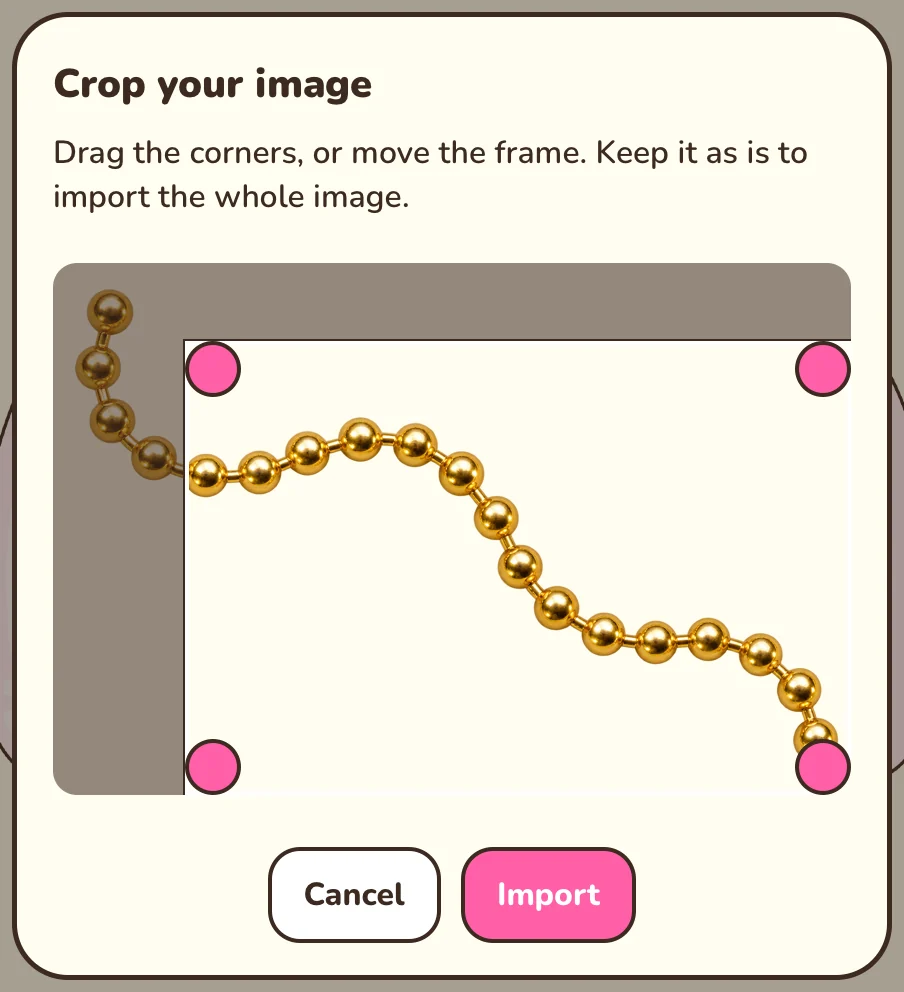
Can I import my own photo or decor?
Yes with Premium (or a rewarded video unlock). When you import an image you can crop it first, or keep it whole. It then arrives on a free layer you can move, resize and transform. Custom decor files should be PNG or WebP with a transparent background.
How do I add a nail outline (Contour)?
Open Decors → Contour, choose Solid or Metallic, then tap a nail. Metallic draws a rounded metal wire in your current color: pick a golden shade for gold, a light grey for silver. Contours are part of the decoration library (Premium or temporary video unlock).
How do metallic gold, chrome, and necklaces work?
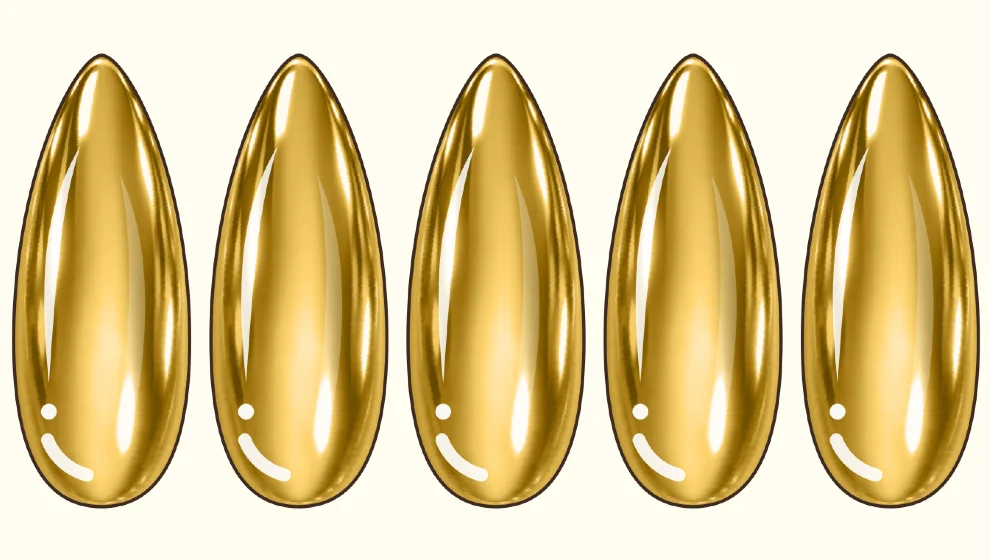
Three places. Decors → 3D metallic → Chrome: tap a nail for a chrome fill in your current color. Decors → Rhinestones: gold ball, beads, pearl and rhinestone necklaces (tap for a ball, drag to string a necklace). Brushes → Brush FX → Gold or Metallic: draw a raised metal line.
How does Aurora work?
Aurora brushes paint the effect where you stroke. Aurora effects: tap a nail to add shine on top of what is already there — so paint or place content underneath first for the best result.
How do I apply a pattern?
Open Decors → Pattern, pick a motif, hover over a nail, pinch to scale, then tap to apply.
How do I recolor an animal print with two zones?
Animal prints with zones use two swatches (for example cells + ridges). Change each color, then tap a nail to apply. You can also drop a color onto a zone with the swatch drag gesture.
How do gel 3D and the gel brush work?
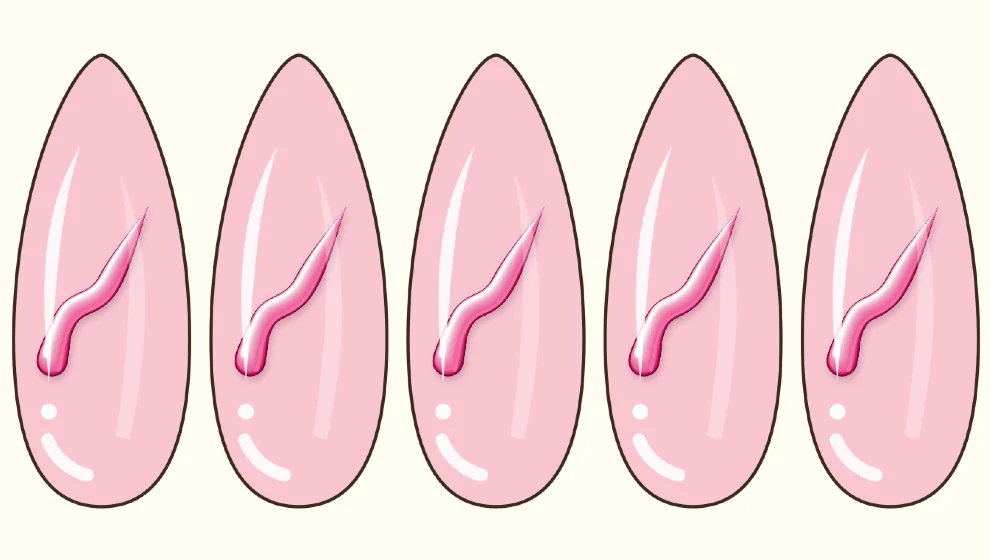
Decors → 3D: tap to place a gel shape. To draw raised lines, go to Brushes → Brush FX and pick the gel brush, 3D Gel Stroke or Puffy Jelly. Gel uses your current color.
What are FX brushes?
Two boxes in the Brushes menu. FX: chains, glitter and textures laid along your stroke. Brush FX: 3D and shiny brushes (Puffy Jelly, 3D Gel Stroke, gel brush, Gold, Metallic, holo brushes). Pick one, then draw on a nail. They are Premium (or a temporary video unlock).
Tools & gestures
How do I select, move, or remove a nail template?
Use Select: tap a nail, drag around nails, or tap All. Drag a selected nail to move it with its paint and decors. Trash removes the template(s). The eraser removes drawings, not the nail shape itself. To put every nail back in line, open Templates and tap Realign: paint and decorations follow.
How do Lasso and Transform work?
Lasso: circle the paint you want, then open Transform. Transform: drag the box, pinch with two fingers to scale and rotate, confirm with ✓. You can also mirror or nudge depending on the transform modes available.
How do I copy and paste a nail?
Open Utilities → Copy, then tap a nail. Choose Paste and tap the target nail (or use the keyboard shortcuts on supported devices). The look is duplicated onto the target.
How do I add text?
Utilities → Text, choose a style (plain, outline, gold), then tap the board to place. Double-tap the text to edit it. Text sits on the board area around the nails.
How do I undo and redo?
Use the undo/redo buttons, or gestures: two fingers tap to undo, three fingers to redo (when available on your device).
How do I zoom and rotate the view?
Pinch with two fingers to zoom and pan. In Apple Pencil–only mode, fingers are reserved for zoom, rotate, and undo — they no longer draw.
What is Apple Pencil–only mode?
After you use the Pencil, your finger no longer draws or places items, so you don’t smudge. Tap a drawing with your finger to pick its color and keep drawing with the Pencil. Fingers still zoom, rotate and undo; Select still works with a finger.
What are StreamLine and QuickShape?
StreamLine smooths your stroke (higher = steadier lines). Stroke tips: for the Brush, the Pen, the 3D brushes and Gold, choose round or pointed at the start and end, and how fine the point is. On the Brush and the Pen you can also set fluidity and pressure. QuickShape: hold at the end of a stroke to snap to a line, an arc or half-oval, a circle or a rectangle, then keep holding to adjust. It works with every brush.
What does “over the edge” do?
It lets 3D brushes (Gold, gel, Metallic…) go slightly past the nail edge for a raised look, without touching the next nail. With the Relief layer open, the Brush and the Pen can do it too. The round button above the size slider switches between over the edge and inside the nail.
Save, gallery & export
Where are my designs saved?
Your private gallery is stored on your device. Designs are not synced to a Nails Creator cloud gallery in the current version — keep backups if you change phones.
How do I export without a watermark?
Free exports include a watermark. Premium removes it. Watching a rewarded video can unlock a cleaner one-time export (small stamp). You can also export with a transparent board so only the nails appear.
What can I do in my gallery?
Create a new design, open one to edit, rename it, favorite, duplicate or delete it. The Private / Public label on a design publishes it to the Wall club (or takes it down). Your gallery stays on the device.
How do I rename a design and find it again?
In the gallery, tap “⋯” on a design, then tap its title to rename it. Then type part of the name in the search bar at the top of the gallery (“Search my designs”) to find it instantly.
Wall, challenges & battles
What is the Wall club?
A community space to publish designs, discover looks, follow artists, vote, and join competitions. Publishing needs an account and accepting the Wall rules. You can report or block content from the app.
How do daily challenges and XP work?
Challenges invite you to create with a theme or goal. Completing them earns XP, levels, and streaks. Progress is linked to your account when you are signed in.
How do badges and collections work?
Badges celebrate what you do: designs, likes, challenges, themes, battles, plus a few secret ones. Collections fill up as you discover tools and decorations; tap a medal to see how to earn it. A complete collection gives a holo medal and bonus XP.
What are Nail Battles?
Battles let you enter a design and vote between looks. Entries and votes are tied to your account. Cheating (multi-accounts, fake votes) is forbidden. If you see “soon”, it usually means no round is open yet — not that the feature is missing.
How do I publish to the Wall club step by step?
Sign in, tap the Private label of a design in the gallery (or “Publish on the Wall club” in the editor menu), accept the Wall terms if asked, optionally join the monthly theme, then publish. You can report or block content from the Wall.
Premium, account & contact
Is Nails Creator free? What does Premium unlock?
You can paint and create for free. Premium unlocks the full decoration library, FX brushes, photo/decor import, watermark-free exports, and editor screenshots. Optional rewarded videos can unlock a single item for a limited time.
How do I create an account or reset my password?
Sign up with email and password, Sign in with Apple, or Google. Confirm your email when asked. Password reset opens the app via a deep link — use the latest email and open it on the iPhone or iPad where the app is installed.
What do I get by creating an account?
The app works without an account and your designs stay yours. With an account you also get the Wall club, daily challenges, levels and badges, a 100 XP welcome gift, and your avatar among our brush characters. The crowned brush is reserved for artists elected Nail art of the month.
How do reminders work?
In Settings, turn on Notifications and pick morning, afternoon or evening. You get at most one gentle reminder a day (today’s challenge, a bit of inspiration, or your streak), and they stop if you don’t come back. You can turn them off at any time.
How can I contact the team?
Email nailscreator.app@gmail.com — ideas, bugs, and feedback are welcome. We read everything.